
5 Yu-Gi-Oh! Card Scanner Apps Compared (2026)

The right Yu-Gi-Oh! scanner depends on what you want to finish. NEURON is the natural starting point for Konami’s official deck and event tools. TCGplayer is worth checking for marketplace inventory work. Collectr suits a collection spread across several games. Dragon Shield and YuScan offer Yu-Gi-Oh!-focused collection workflows.
These are different jobs. A camera that finds a card name does not necessarily identify the printing you own, create a usable sale list or register a tournament deck.
Checked on October 23, 2026. YuScan is our own app. The competitor sections below use their official product pages, store listings and help documents. We have not run a controlled comparison of their recognition speed or accuracy. The YuScan images show our own app with sample collection data; they are not screenshots of a competitor test.
Quick comparison: which task does each app serve?
All five options have iPhone and Android apps. This is a shortlist, not an exhaustive list of every scanner in the stores. The linked sources in each section explain the documented features and their limits.
| App | A reason to try it | Documented work after recognition | What to check in your trial |
|---|---|---|---|
| YuScan | A Yu-Gi-Oh!-focused scan, review and collection workflow | Named collections, quantities, available value estimates and Main/Extra/Side editing | Correct printing, saved copy count and the export format on your platform |
| Yu-Gi-Oh! NEURON | Official deck registration and Duel support | Card search, deck tools, CARD GAME ID and event functions | Whether your real goal is deck management or collection valuation |
| YGO Scanner — Dragon Shield | Yu-Gi-Oh! folders, trade lists and pricing tools | Collection/deck management, marketplace references and list exports | Your card languages, foil variants and the limits of the current plan |
| TCGplayer | Preparing card lists for the TCGplayer ecosystem | Collections, scanning and documented CSV inventory workflows | Set, finish, condition and language fields in a small exported list |
| Collectr | Tracking Yu-Gi-Oh! alongside other trading card games | Multi-game portfolios, quantities and PRO export | Yu-Gi-Oh! printing matches and whether the features you need require PRO |
YuScan: scan, review and keep a Yu-Gi-Oh! collection
YuScan brings the scanner, recently scanned cards, search, collections and deck editor into a Yu-Gi-Oh!-specific app. The useful loop is to identify a card, review the result and add the copies you own to a named collection. You can return to the collection to check quantities and the estimates available for its entries. The scanner feature guide and collection guide describe that workflow.
For a first trial, use a small physical group rather than your whole binder:
- Scan or search for a card, then open the result.
- Compare its set code, rarity, edition and language with the physical copy. Correct the selection where the app offers it; do not assume a name match settles the printing.
- Add the intended number of copies to the correct collection.
- Open that collection and compare the saved entries and quantities with the cards in front of you.
- Review a value only after checking what card entry it describes.
From recent scans to a saved YuScan collection

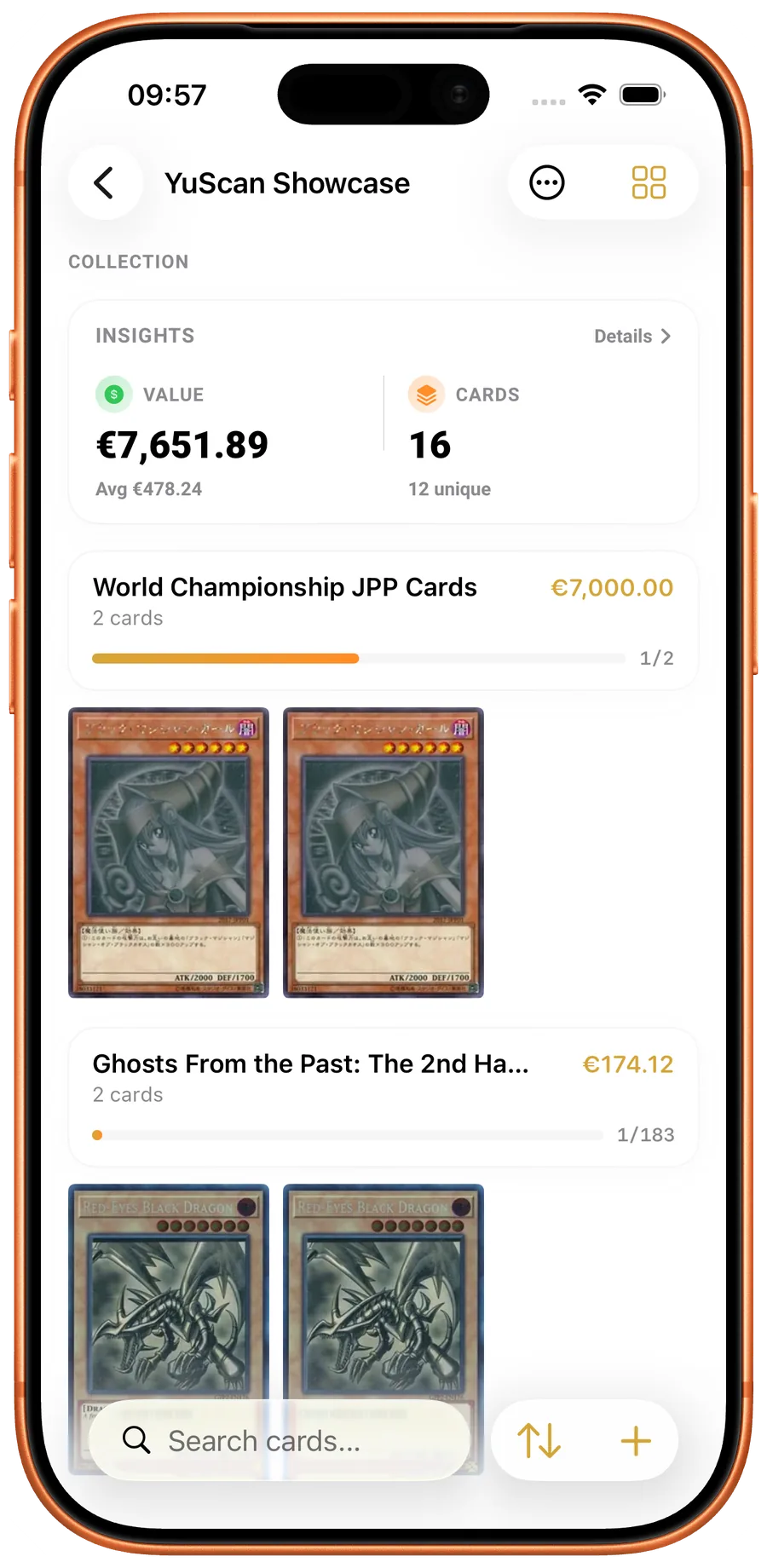
Real iPhone and Android app screens, captured on 23 October 2026 with sample collections. Switch platforms to see the corresponding app. Values are examples; currencies follow each capture’s app settings.
YuScan also has Main, Extra and Side Deck editing. A collection answers what you own; a deck list answers what belongs in that deck. Check the two separately when duplicates or cards used in several decks are involved. Start with the deck-builder guide if that is your main task.
Platform details matter. Collection export on iPhone requires YuScan Pro. YuScan’s iOS Cardmarket Wants TXT and Android Cardmarket CSV are separate export formats. Open a small export in its intended destination before relying on a large list. The getting-started guide covers the app’s core steps.
A reason to choose another option: use NEURON for Konami’s official registration and event functions, or consider a multi-game manager when you want different games in one portfolio. YuScan’s available cached data depends on what has already loaded; new downloads and price refreshes need a connection. Neither a scan nor an estimate authenticates a physical card, grades its condition or guarantees a sale price.
Yu-Gi-Oh! NEURON: official deck, card and tournament support
NEURON is Konami’s official support app for the Yu-Gi-Oh! TCG. Its current product page lists camera-based card recognition, card-database search, deck organization, event functions and Duel tools such as a Life Point calculator. Konami lists both iOS and Android and describes the app as free; some functions require a KONAMI ID.
The official iPhone listing says image recognition can read up to 20 cards at a time for tasks such as building a deck list. It also describes opening-hand simulation, a CARD GAME ID display and card text in several languages. The maximum batch size is a published capability, not a claim that every arrangement or foil surface will scan successfully.
Where it fits: a player who wants to get a physical deck into Konami’s deck tools, find card information or prepare for organized play has a direct reason to start here. Its role differs from an app centered on cataloging a binder’s estimated value.
What to check: make a small deck list and review names and copy counts after recognition. If you need condition-specific inventory, market values or spreadsheet exports, check those requirements separately: the cited product page does not establish those workflows. A deck-registration feature should not be treated as evidence of a priced physical collection.
Dragon Shield YGO Scanner: folders, prices, decks and trade tools
Dragon Shield publishes a dedicated Yu-Gi-Oh! app rather than asking you to use its Magic or Pokémon manager. Its Google Play listing advertises camera scanning of cards in different languages, translation, TCGplayer and Cardmarket price references, custom collection folders and trading tools. It also documents CSV/text exports and price-history views.
The iPhone listing describes collection folders, Main/Extra/Side Deck tools, wishlists, trade lists and a comparison of trade values. Both stores list in-app purchases. Check the actual plan screen for the functions and limits you need; a free download does not establish unlimited use of every feature.
Where it fits: try it if you want a Yu-Gi-Oh!-specific manager with folders and trade-related lists, especially if the published language support is relevant to your binder. Being able to translate a card and finding a matching regional printing are different requirements, so include your actual card languages in the trial.
What to check: the Dragon Shield FAQ recommends changing lighting or angle for glare and using manual search if scanning fails. That is a useful fallback to test before committing to a large batch. Also verify whether editing a deck updates any owned-card records as you expect. The FAQ describes decks and inventory as separate sections; do not assume that placing a card in a deck records physical ownership.
The named price sources help you understand the reference, but the displayed figure still needs a matching printing and condition. A trade total is an estimate to discuss, not proof that another collector can sell the cards for that amount.
TCGplayer: scanning connected to marketplace inventory work
TCGplayer is particularly relevant when your next step is a card list for its marketplace or a store inventory system. Its official mobile-app update explicitly includes Yu-Gi-Oh! and says scanning now covers the games on its marketplace. The same notice distinguishes direct Seller Portal inventory import for eligible Level 4 sellers from other workflows; installing the app does not give every account that capability.
TCGplayer’s scanning and export help covers Apple and Android devices. It explains how to create collections, scan cards and configure email export as a CSV attachment. It also tells users to review quantity, set, foiling, condition and language after scanning. Those review fields are central to a usable inventory, rather than an optional detail after a name match.
Where it fits: try this route if you already work with TCGplayer and want to examine its documented collection-to-CSV process. That is a more specific reason than assuming that the largest marketplace must have the most accurate camera for your cards.
What to check: scan a small list, verify its card details, export it and open the attachment. Confirm that its columns suit your receiving inventory system before doing a full binder. A file prepared for one service is not automatically compatible with another service’s importer. Check any seller-account requirements separately from the ordinary collection functions.
TCGplayer advertises improvements to its recognition engine. We have not measured those improvements against the other apps here, so they are not used as an accuracy score or a speed ranking.
Collectr: Yu-Gi-Oh! within a multi-game portfolio
Collectr is useful to consider when Yu-Gi-Oh! is one part of a wider card collection. Its scanner page explicitly includes Yu-Gi-Oh! alongside other games and describes a scan-to-portfolio process with quantity and condition selection. The same page links its iPhone and Android apps.
Collectr advertises automatic set and variant matching. Treat that as the developer’s description of the feature, then verify the result against your own printing. A page illustrating foil choices across several games does not, by itself, demonstrate recognition of every Yu-Gi-Oh! finish or non-English release.
The portfolio overview emphasizes tracking several games and reviewing collection values over time. Its PRO page promotes unlimited scanning, collection export and expanded pricing history. If you need a large scanning session or a file you can keep elsewhere, check the current entitlement and the actual output before selecting a plan. We do not quote a regional subscription price or infer a free scan allowance from a download button.
Where it fits: a collector who wants different games visible in one portfolio has a clear reason to try Collectr. Its broader scope can matter more than a Yu-Gi-Oh!-only workflow when you regularly switch between collections.
What to check: use several printings of a familiar Yu-Gi-Oh! card, set their quantities and inspect the saved portfolio entries. If export matters, open a small resulting file and check which printing, variant, language and quantity details survive. Do not assume portfolio tracking also provides Konami tournament registration or a particular marketplace’s import format.
How to compare scanners with cards you actually own
You can run a useful trial without inventing an accuracy percentage. Use the same small group in each app, and write down the correct details first. Include an ordinary card, a reflective foil, two releases sharing artwork, a duplicate and a card in each language you collect. If you collect OCG or Rush Duel, explicitly check those cards; general Yu-Gi-Oh! support does not establish every catalog or format.
For every app, complete the same sequence:
- Identify. Scan under your normal lighting. Note when glare, sleeves or the background require a change. Use manual search when needed.
- Review. Compare name, set code, finish, edition and language with the physical card. A successful picture match alone is not the result you need.
- Record. Add the correct copies to a named collection or deck, according to your task.
- Return. Close the scanning screen and find the saved entries again. Check the number of distinct entries and the total number of copies separately.
- Use the result. Read the matching price reference, reopen the deck or inspect an export. Stop when a required field is missing rather than assuming it transfers correctly.
If you need to work with a weak connection, load the necessary data first, then test the exact actions you plan to use. Cached card information, camera recognition and refreshed prices are separate capabilities. We have not verified a common offline feature set across these five apps.
Choose by the finished result
- I want to play in official events: start with NEURON’s official guidance and the requirements of the event you intend to enter.
- I want a checked Yu-Gi-Oh! collection: trial YuScan or Dragon Shield using your real printings and duplicate counts.
- I need a TCGplayer-oriented inventory list: follow TCGplayer’s documented scanning/export path and verify your account and receiving system.
- I collect several games: compare Collectr’s shared portfolio workflow with keeping separate game-specific inventories.
- I only need to identify one card: manual search and a careful set-code check may finish the task without moving your entire collection into a new app.
For a physical card’s value, continue with the printing-first price-check guide. For a binder project, use the collection-organizing guide. These help turn a scanner result into something you have actually checked.
Questions to settle before importing a whole binder
Does scanning tell me whether a card is genuine?
No. Recognition finds a database candidate; it does not authenticate the physical item. Inspect the card separately and use the fake-card checklist for an initial review. Seek qualified help when uncertainty matters.
Why do two apps show different values?
They may refer to different releases, finishes, conditions, marketplaces or observation times. Check those inputs before comparing totals. An asking price, an estimate and proceeds from a completed sale are different figures. See why prices vary by printing.
Is a collection export a backup?
A list can preserve useful inventory information, but it is not automatically a restorable copy of your app’s folders, history and settings. Open a small export and check its fields and intended destination. Keep the source collection while evaluating a move.
Which scanner is fastest or most accurate?
This article does not establish a winner on those measures. The published sources describe features; they do not provide one independently controlled test covering the same cards, devices and conditions. Choose by the task you can complete correctly with your own sample.
On YuScan
Review a scan in YuScan
Check the card and printing before adding copies to a collection.
YuScan · iOS & Android
Scan your cards. Keep track of every copy.
Check the printing, organize your collection and build a deck with YuScan for iOS and Android.
- Card scanner
- Set code and rarity
- Edition, language and quantity