
Getting Started with YuScan: Scan, Review and Organize Your Cards
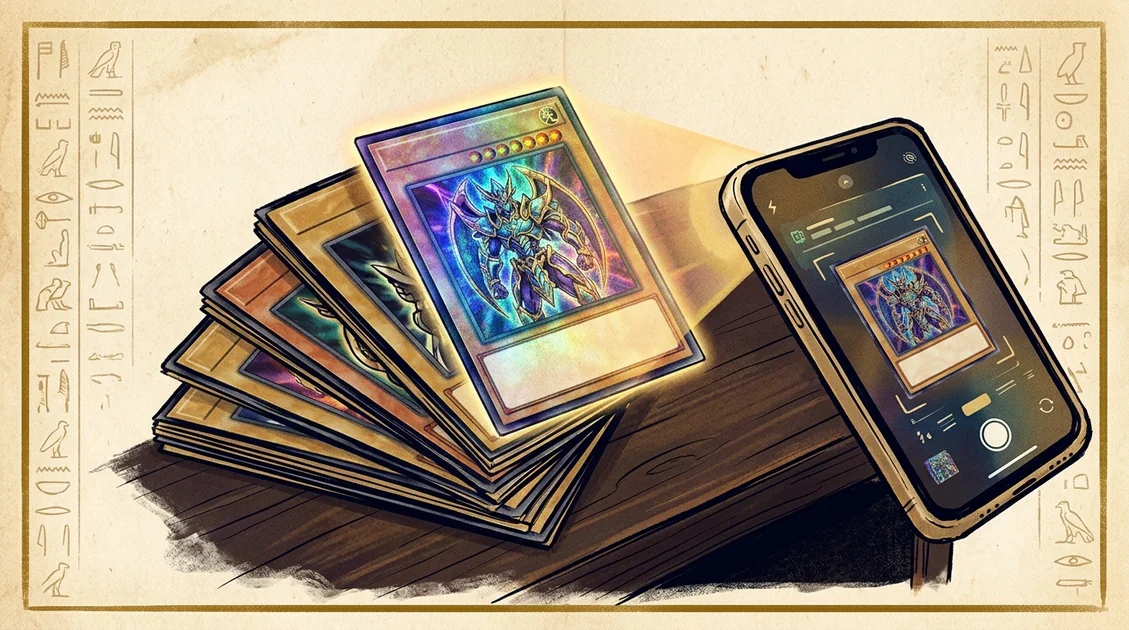
Two cards with the same name can belong to different releases. Before recording a Yu-Gi-Oh! card or comparing a value, check its set code, rarity, edition and language against the copy in your hand.
YuScan helps you keep that record. Start with a small group of cards so you can check the results before moving on to the rest of a binder.
What YuScan does
Four ways to use the app
- Card scanner — point the camera at one card, review the result and correct the selected card or printing when needed.
- Available values — check the selected printing and choose your display currency. Missing values remain unknown; estimates are not purchase offers.
- Collection tracker — create named collections, record cards and quantities, then compare the saved entries with your physical cards.
- Deck builder — organize Main, Extra and Side Deck sections and review counts and warnings. Check official rules separately before an event.
Record your first cards
- Open the scanner and place one card in view. Use even light and change the angle if glare covers the artwork or text.
- Review the result. Compare the set code, rarity, edition and language yourself; a matching name or illustration does not establish every printing detail.
- Choose a collection and confirm the quantity. Check duplicates instead of assuming every scan represents a different physical copy.
- Open the collection and compare its saved entries with the cards in front of you.
A scan does not authenticate a card or assess its physical condition. If the result needs correction, search for the card and inspect its known printings before adding it.
Check a value after the printing
Open the card or collection to review available estimates. Use the same printing, edition and condition when making a comparison. A collection total is a reference for further research; it is not an offer to buy your binder.
Choose app interface language, card language and display currency for their separate purposes. One choice does not prove that every card has translated text or a current price quote.
Build a deck
New to the game itself? Follow our beginner’s guide to learn the basics and choose a first deck before buying upgrades.
Create a named deck and add cards to its Main, Extra and Side sections. Review quantities and any warnings before using the list. The editor does not certify tournament eligibility. Our Side Deck guide explains the copy limits, one-for-one exchanges and practice before a match.
Import options differ: iOS has a supported YGOPRODeck URL import, while Android supports its own pasted list, .ydk and ydke formats. Check the resulting deck rather than assuming that every format works on both platforms.
Keep a list or share an image
Collection export provides supported inventory formats. The iOS Cardmarket Wants TXT and Android Cardmarket CSV are different outputs, so choose the format the receiving tool expects.
A collection-image preview lets you inspect the cards before opening the system share action. It produces a static image, rather than a live link that updates or grants editing access. An inventory export does not restore every folder, scan history entry and app setting.
Prepare downloaded data
Connect before you start so the app can load the card data you need. Cached cards and values depend on what is already on your device. New downloads and refreshed values need a connection.
On YuScan
Browse the Yu-Gi-Oh! card database
Search cards and compare known printings before recording your collection.
YuScan is available on iOS and Android. Explore the scanner, collections or deck builder for the relevant steps and limitations.
YuScan · iOS & Android
Scan your cards. Keep track of every copy.
Check the printing, organize your collection and build a deck with YuScan for iOS and Android.
- Card scanner
- Set code and rarity
- Edition, language and quantity