
How to Sell a Yu-Gi-Oh! Collection: Prepare Singles, Bulk and a Checked List
Prepare a checked inventory before deciding how to sell your Yu-Gi-Oh! collection. Identify the cards you may offer individually, count duplicates, separate the remaining lot and photograph its actual condition. Then ask buyers or marketplaces about the cards you have, rather than a total you cannot explain.
The goal of this walkthrough is a practical sale-preparation pack: clearly separated cards, a dated list and useful photographs. YuScan can help you record cards and quantities on iPhone or Android. The sale, buyer checks and final agreement happen through the channel you choose.
1. Choose what you want to sell and how much work to take on
First, remove anything you intend to keep. A photograph of the whole binder can become misleading if some of the visible cards will not be included.
Then choose a starting route:
| Route | Useful when | Preparation to finish first |
|---|---|---|
| Individual cards | You want to describe and handle specific copies separately. | Exact printing, quantity, condition and close photographs for each listing. |
| A defined lot | You want one buyer to take a clearly described group. | The included cards or lot composition, duplicate counts, language and condition range. |
| A dealer’s collection intake | You prefer an offer for an accepted collection. | The dealer’s current language, condition, quantity and submission requirements. |
These routes involve different amounts of listing, communication, packing and shipping. There is no universal price threshold that makes every card worth selling individually, and a stack of foil cards does not automatically justify separate listings.
If considering a dealer, read its intake page before sending anything. For example, Gate to the Games requests advance contact and information about quantity, condition, language and composition. Those are that dealer’s terms, not rules shared by every buyer. Check the current requirements of your chosen buyer and retain its confirmation.
2. Divide the collection into three working groups
Use separate boxes, dividers or clearly marked areas:
- Check individually: cards whose printing or comparable price needs a closer look.
- Count as a lot: cards you intend to offer together with an honest description.
- Resolve first: unreadable set codes, uncertain finishes, possible alterations or anything you are not yet able to describe confidently.
Keep the third group out of a finished listing until you have resolved it or can accurately disclose what is uncertain. Do not put an unidentified card into a lot while advertising a more valuable printing as confirmed.
If the binder is disorganized, the collection-organizing guide can help you make the physical groups manageable before recording them.
3. Identify the exact copies, including duplicates
For cards in the individual-check group, record the name and complete set code. Then inspect edition, rarity and language. Two copies sharing a name may belong on different rows.
Work with one small group at a time. Scan or search each card in YuScan, review the result and add the intended copies to a named collection. Check the printing yourself before saving. If recognition needs correction, use search instead of carrying the mismatch into your inventory.
Count physical duplicates separately from scan events. If three copies have the same printing, language and condition, record the quantity you actually intend to sell. If one is creased and two are clean, keep the condition distinction in the sale list even when the app groups them together.
The price-check guide explains comparable values. For old cards, do not use the copyright line as their release date: this guide to cards marked ©1996 shows how to find the actual printing.
4. Record condition outside the scan result
Inspect both sides of each individually described card under clear light. Record visible corner wear, edge whitening, surface scratches, creases, dents or changes to the card. A sleeve can hide marks, so do not assess condition only from an app image or the front of a sleeved card.
Use the condition scale of the selling destination. Cardmarket’s guide explains its terminology and why two people may assess a copy differently. If your destination uses another scale, follow that destination’s definitions rather than assuming every label translates exactly.
For a mixed-condition lot, describe the range and identify significant damage. Do not label the entire group Near Mint because a few cards in the first photograph look clean.
YuScan does not inspect physical wear or authenticate the cards. Keep your condition notes and sale photographs with the inventory, even if a particular app output does not contain those fields. Our condition guide provides a closer inspection checklist.
5. Make a dated sale list you can check
A spreadsheet or a clearly formatted document is enough. Use separate fields for:
- Card name and complete set code.
- Edition, rarity and language.
- Quantity offered for sale.
- Your condition description and a photograph reference.
- Any price reference, its source and the date checked.
- The sale group or listing in which the cards are included.
Keep unknown values blank or label them “not verified.” Do not fill them with zero. If you split one printing by condition, use separate rows or clear copy-specific notes.
Here is a blank structure, not an app-export promise:
| Card and set code | Edition / rarity / language | Quantity | Condition and photo | Reference and check date |
|---|---|---|---|---|
| Enter the exact identity | Record all three | Count physical copies | Describe wear; link the photo | Record source/date, or “not verified” |
Use YuScan’s export as a starting point
Open your saved collection and inspect the export choices available on your platform. On iPhone, collection export requires YuScan Pro. You can also prepare the manual spreadsheet described above. Pick an output the receiving tool accepts, then open the resulting file before sending it to anyone. Check its actual columns and quantities; add your condition notes, photographs and date separately where needed.
The iOS Cardmarket Wants TXT and Android Cardmarket CSV options are different outputs. A format’s name does not prove that it meets a buyer’s particular intake template. Keep an ordinary inventory list if a destination needs different fields.
Check the inventory before sharing a file
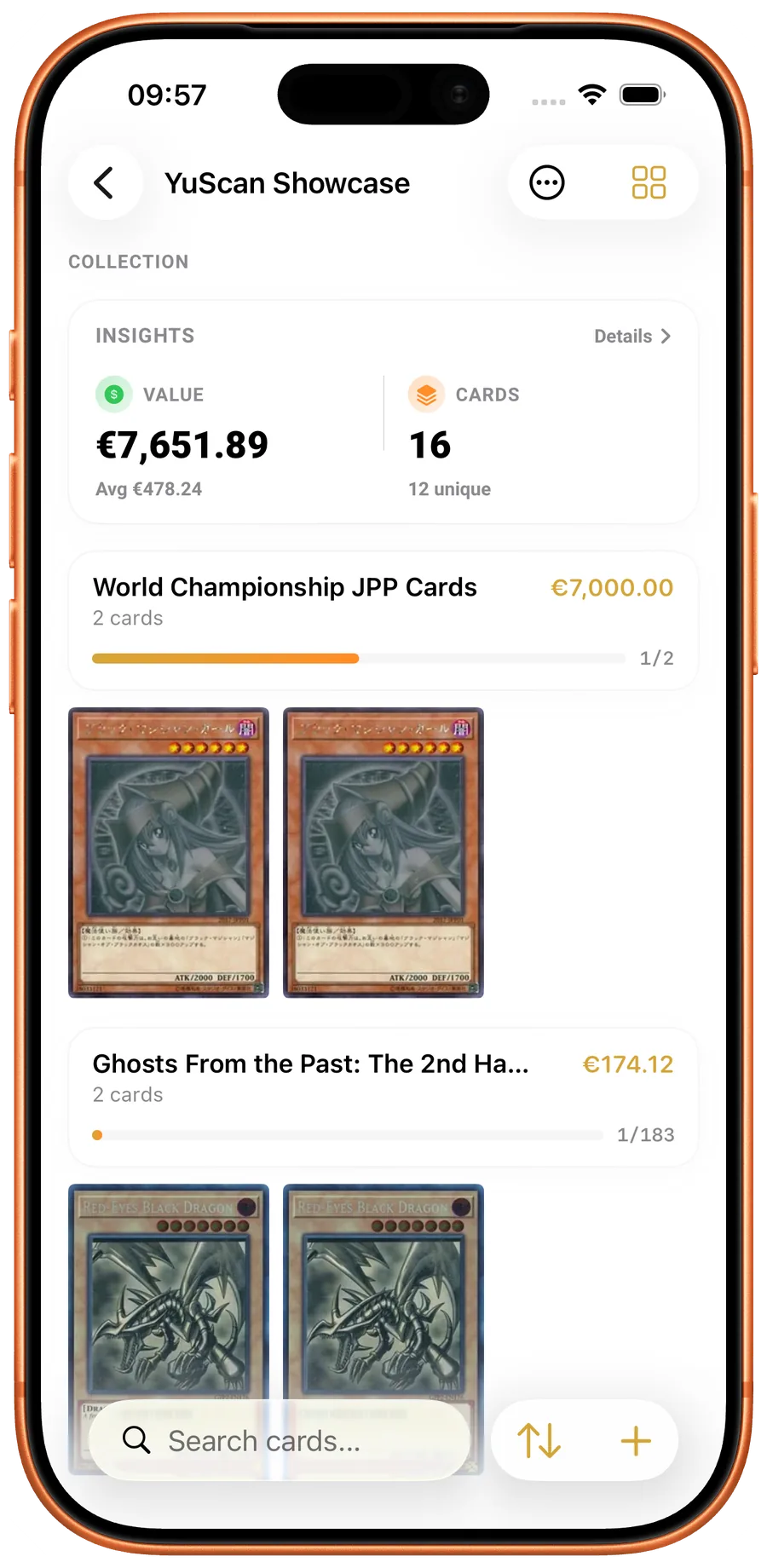
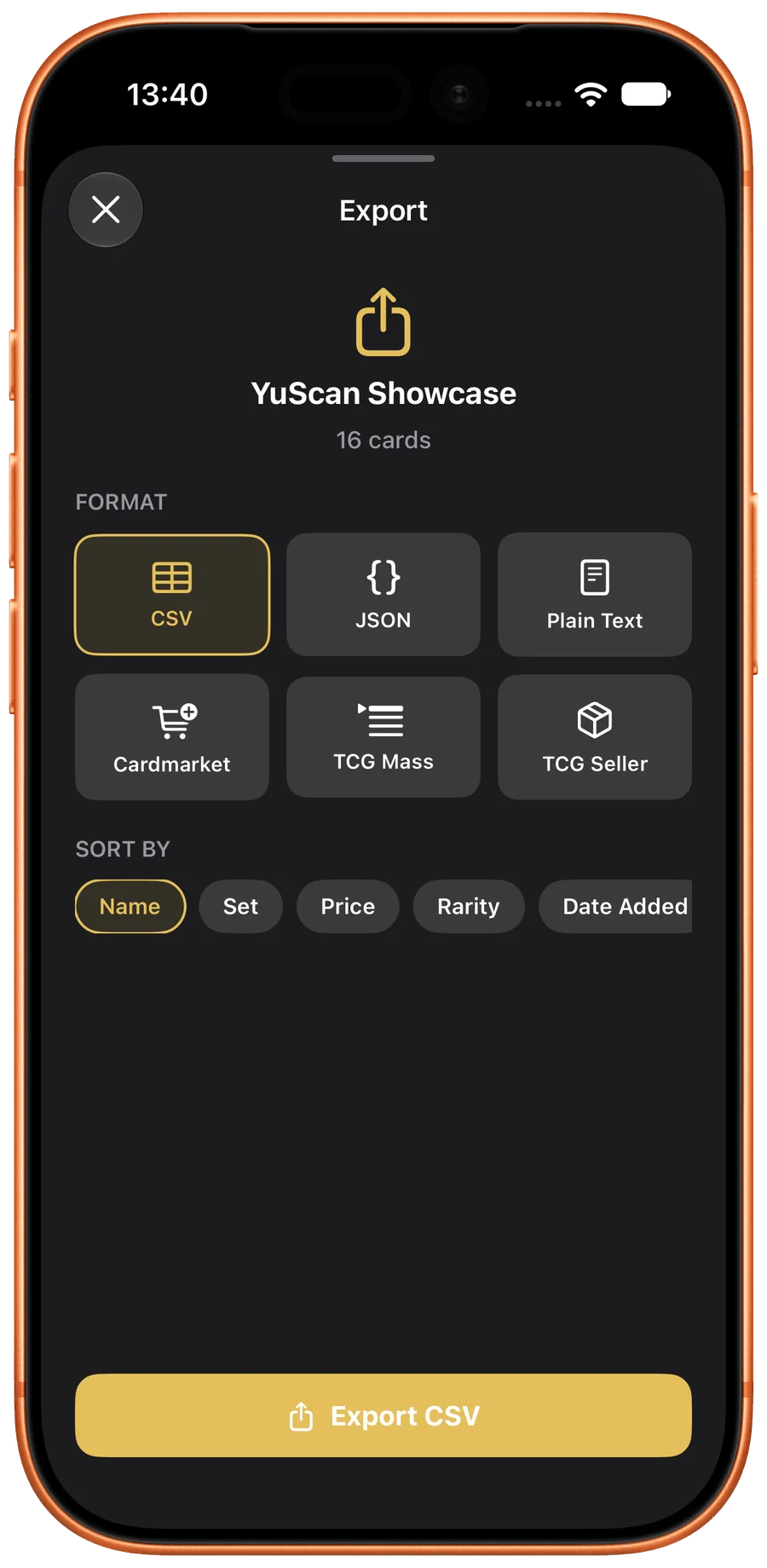
Real iPhone and Android app screens, captured on 23 October 2026 with sample collections. Switch platforms to see the corresponding app. Values are examples; currencies follow each capture’s app settings.
The screenshots use example collections and display settings. Choose and check your own currency; do not copy a demonstration total into a sale description. An inventory export is also different from a complete backup of folders, settings and scan history.
Date the list yourself and keep a copy of the version you send. If you remove a card from the sale or change quantities, update the list and tell the recipient which version replaces it.
On YuScan
Review the cards you plan to sell
Use a named YuScan collection to check saved cards and quantities against the physical group.
6. Take photographs that show what is included
Take an overview of the actual group, then front and back photographs of individually described cards. Add close-ups of the set code, edition text, finish or damage where those details matter. Use even light, keep the camera focused and reduce sleeve glare.
For each photograph, ask: could a buyer tell which physical copies this shows? Keep valuable cards you are retaining out of the sale photographs, or clearly separate them from the offered group before taking the picture.
TCGplayer’s Listings with Photos policies require accurate item photographs and descriptions of details such as set, condition, quantity, language and modifications. Its rules distinguish some randomized bulk-lot cases, so check the rules for your exact listing type. A YuScan screenshot can help explain your inventory, but it does not show the physical condition of the cards for sale.
For a defined lot, describe its actual contents and duplicates. If selling a randomized assortment where the marketplace permits it, follow its requirements and do not show specific cards as guaranteed inclusions unless they are included. TCGplayer’s Bulk Lots FAQ provides an example of this distinction.
7. Compare offers with the same scope
An app total, the sum of individual asking prices and an offer for one entire collection describe different things. Before comparing two offers, check whether both include the same cards, quantities and shipping arrangements.
For individual references, use the matching printing, edition, language and condition. Keep asking prices separate from completed sales. For a collection offer, ask which cards are included in the valuation and how unresolved or unacceptable cards will be handled.
Check the actual selling, payment, packing and shipping costs for your chosen channel. What a buyer pays and what you receive after those costs are different amounts. No app total guarantees a buyer, an accepted offer or a particular net amount.
Before you list or send the cards
Finish these checks against the physical collection:
- The offered cards are separated from the cards you are keeping.
- Individual rows match the set codes, editions, languages and quantities in front of you.
- Condition notes and photographs describe the actual copies.
- The lot description identifies the included group and any significant duplicates or damage.
- Your list has a date, and the recipient has the current version.
- You have checked the destination’s current listing or intake requirements.
- Any collection total is labelled as a reference, rather than an agreed sale price.
Once those checks are complete, you have something concrete to list or send for an offer: a described collection whose contents another person can understand and verify.
YuScan · iOS & Android
Scan your cards. Keep track of every copy.
Check the printing, organize your collection and build a deck with YuScan for iOS and Android.
- Card scanner
- Set code and rarity
- Edition, language and quantity